Image Alt

Mercenary Finder

Mercenary Finder for Windows

Automate your search for Mercenary Exchanges

Choose one of four search modes and let Mercenary Finder detect Mercenary Exchanges on the Total Battle map.

Version 2.1.0 Windows 8 or newer 1920 × 1080 Display scaling 100%
Video guide

See Mercenary Finder in action

See how the Windows version finds Mercenary Exchanges.

Installation

Install Mercenary Finder for Windows

Download the official ZIP archive, extract it and launch MercenaryFinder.exe.

Download the ZIP archive

Use the official download button on this page.

Extract all files

Right-click the archive and extract it with Windows, 7-Zip or WinRAR.

Launch the program

Open the MercenaryFinder_2_1_0 folder and run MercenaryFinder.exe.

Sign in to your account

Use the same Total Battle Helper account to which your tokens are assigned.

Security notice: Windows or antivirus software may warn about an unsigned application. Download Mercenary Finder only from totalbattlehelper.com and keep all extracted files together.
Updating from an older version? Download the new ZIP, extract it to a new folder and run MercenaryFinder.exe from that folder. Do not copy only the EXE over an older installation.
Search modes

Choose how you want to find Mercenary Exchanges

Switch between direct control and automated scanning depending on the way you want to search.

01

Manual search

You control the map while Mercenary Finder handles visual detection.

02

Automatic search

Automatically check large map areas for Mercenary Exchanges.

03

Linear search

Look for Mercenary Exchanges using a repeatable linear movement pattern.

04

Random locations

Check randomly selected locations across the kingdom map.

First launch

From sign-in to your first search

These screens guide you through signing in, checking the requirements and starting the Mercenary Exchange search.

How it works

Start a search in four steps

1

Prepare Total Battle

Launch the desktop game client and open the map where you want to find Mercenary Exchanges.

2

Sign in

Launch Mercenary Finder and sign in with your token account.

3

Choose a search mode

Select the mode and settings that match the way you want to find Mercenary Exchanges.

4

Start searching

Start the process and adjust the speed if the map needs more time to load.

Please note: Mercenary Finder improves your chances of locating an exchange, but cannot guarantee availability. During busy periods, exchanges may be claimed within seconds.
4 search modes
Mode-based token usage

Choose the search method that suits you

Every mode has its own token rate, shown in the program before you begin.

  • Manual and automated modes have separate usage rates.
  • Your current token balance remains visible in the program.
  • Choose the mode before starting the search.
  • The process stops when the search is ended or no tokens remain.
Requirements and help

Before you begin

  • Windows 8 or newer.
  • Screen resolution set to 1920 × 1080.
  • Windows display scaling set to 100%.
  • The official Total Battle desktop client installed.
  • A Total Battle Helper account with available tokens.
  • A stable internet connection.
Tokens can be purchased through the Total Battle Helper Android application and are assigned to the same account used by Mercenary Finder.
The program does not start

Extract the complete ZIP archive first and keep all files in the MercenaryFinder_2_1_0 folder.

The interface or map is not detected correctly

Confirm the 1920 × 1080 resolution and set Windows display scaling to 100%.

The map moves before locations finish loading

Reduce the search speed so that Total Battle has enough time to load each map area.

I cannot sign in or see my tokens

Use the same account used in Total Battle Helper and verify your internet connection.

Ready to begin?

Find Mercenary Exchanges with Mercenary Finder

Download version 2.1.0, choose a search mode and begin looking for Mercenary Exchanges.

INTRODUCTION

Mercenary Finder for Windows is an automated program designed to search for mercenary exchanges.

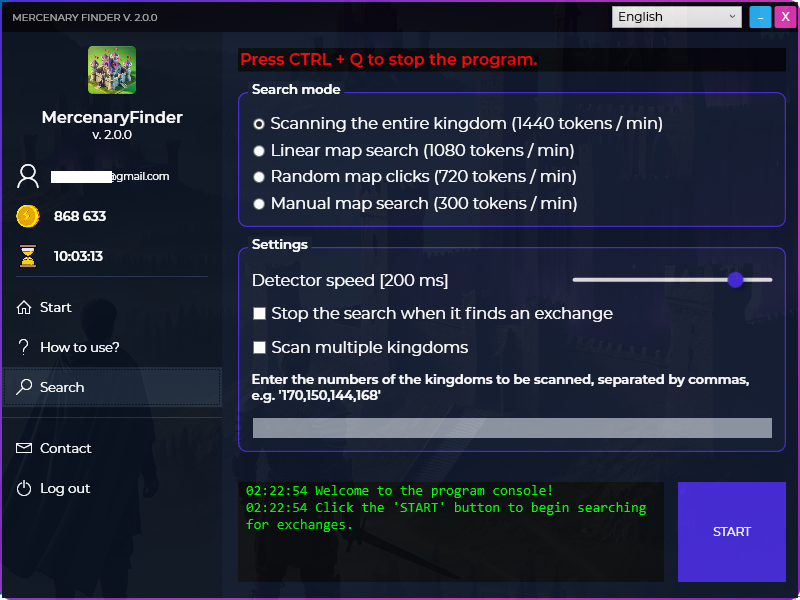
It offers multiple search modes, such as:

  • manual search,
  • scanning entire kingdoms,
  • linear search,
  • searching random locations on the map.

Each mode consumes a specific number of tokens per minute.

The program does not guarantee finding a mercenary exchange within a few seconds; however, it significantly helps with locating one. The result often depends on the number of players currently searching for mercenary exchanges — during peak hours, exchanges may disappear within seconds.

Requirements and Installation
  • Screen resolution 1920×1080
  • Windows 8 or newer
  • Installed game client – https://totalbattle.com/download
  • Display scaling set to 100% (the setting next to screen resolution)
  • Total Battle Helper (Android) account with purchased tokens

Token purchase:

  1. Download the Total Battle Helper application from the Google Play store: https://play.google.com/store/apps/details?id=com.silverfox.TotalBattleHelper
    and install it on your Android device.
  2. Launch the application and go to the PRO tab in the main menu, then click “Get tokens.”
  3. Purchase the token package you are interested in.
  4. Before purchasing, you will be asked to log in to your account or create a new one if you do not have one. After the purchase, the tokens will be assigned to your account.
  5. If you do not want to spend money, you can use the free tokens offer (the “Get free tokens” button).
  1. Download the Mercenary Finder program available for download in the installation tab.
  2. Right-click the file and extract it using WinRAR or 7-Zip. (If you are using antivirus software, the program may be flagged as unsafe because it is not signed with a certificate – if you encounter problems with extraction or installation, disable your antivirus software during extraction.)
  3. After extracting the program, go to the MercenaryFinder_2_0_0 folder and run it by clicking MercenaryFinder.exe.
  4. After launching the program, a login window will appear – log in using the same account you used to purchase tokens in the Total Battle Helper application.

Latest version:

  • If the program does not work, make sure that you have met the requirements described in the REQUIREMENTS section, then check the Frequently Asked Questions page.
  • If this does not solve the problem, contact me using the contact form on the website or by sending an e-mail directly to: silver20x18@gmail.com.
  • If you attach a screenshot of the entire game with the mercenary exchange location visible to your e-mail, it will speed up the analysis process.
  • If the problem cannot be resolved, I will refund your money.
First launch

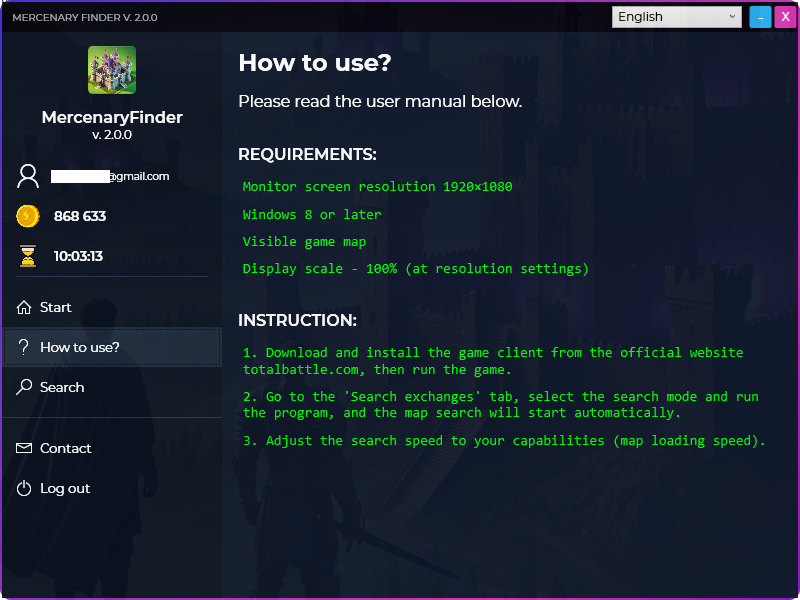
1. Select a language, then log in to your account topped up with tokens.

2. Familiarize yourself with the information presented in the program.

3. Make sure that all requirements have been met.

4. Launch the Total Battle game and go to the kingdom map view in which you will be searching for exchanges.

5. Return to the program and go to the 'Search' tab.

6. Choose the mode that suits you.

Click the 'Start' button – the program will begin searching.

8. If necessary, adjust the search speed so that the map elements have enough time to load while scrolling.

INTRODUCTION

Mercenary Finder for Android is a simplified version of the Windows program.

It currently supports manual mode and scrolling the map in random directions.

It significantly increases the chances of finding a mercenary exchange; however, it is not as effective as the Windows version.

Requirements and Installation
  • Minimum Android version: 8.1
  • Game screen zoomed out to 25%
  • Total Battle Helper (Android) account with purchased tokens

Token purchase:

  1. Download the Total Battle Helper application from the Google Play Store:
    https://play.google.com/store/apps/details?id=com.silverfox.TotalBattleHelper and install it on your Android device.
  2. Launch the application and go to the PRO tab in the main menu, then click “Get tokens.”
  3. Purchase the token package you are interested in.
  4. Before purchasing, you will be asked to log in to your account or create a new one if you do not have one. After the purchase, the tokens will be assigned to your account.
  5. If you do not want to spend money, you can use the free tokens offer (the “Get free tokens” button).
  1. Download the APK file available in the installation tab, then install it on your device (since the application is not available on the Google Play Store, you must allow forced installation).
  2. Launch the application and log in to your account topped up with tokens.

Latest version:

  • If the program does not work, make sure that you have met the requirements described in the REQUIREMENTS section, then check the FAQ page.
  • If this does not solve the problem, contact me using the contact form on the website or by sending an e-mail directly to: silver20x18@gmail.com.
  • If you attach a screenshot of the entire game with the mercenary exchange location visible to the e-mail, it will speed up the analysis process.
  • If the problem cannot be resolved, I will refund your money.
Application description

1. Current number of tokens on the account and available search time.

2. Your device’s screen resolution.

3. If your device has a different resolution than those available, choose the closest one.

4. If necessary, adjust the search speed so that the map elements have enough time to load.

5. Vibration when an exchange is detected.

6. Beeping sound when an exchange is detected.

7. Automatic map scrolling.

8. Service start button.

9. Logout button.

1. Current search status: red – inactive, green – active.

2. Button to start the search / pause.

3. Panel movement button.

4. Service stop button.

First launch

1. Launch the Total Battle game and go to the kingdom map where you will be searching for exchanges.

2. Launch the Mercenary Finder program.

3. If necessary, adjust the program settings.

4. Click the Start button and grant the required permissions (recording the entire screen).

5. When the service panel appears, move it to the top-right corner and return to the Total Battle game.

6. Zoom out the game map to 25% and hide the UI elements (the icon at the bottom of the screen).

7. Click the Play button on the panel – exchange detection on the screen will start.

8. If the map scrolling option is enabled, the map will start scrolling in random directions.

9. If the map scrolling option is disabled, the map must be scrolled manually (recommended).